BI #
Through the “BI” function, we can customize and analyze the data of services to meet different operational needs. The effects are as follows
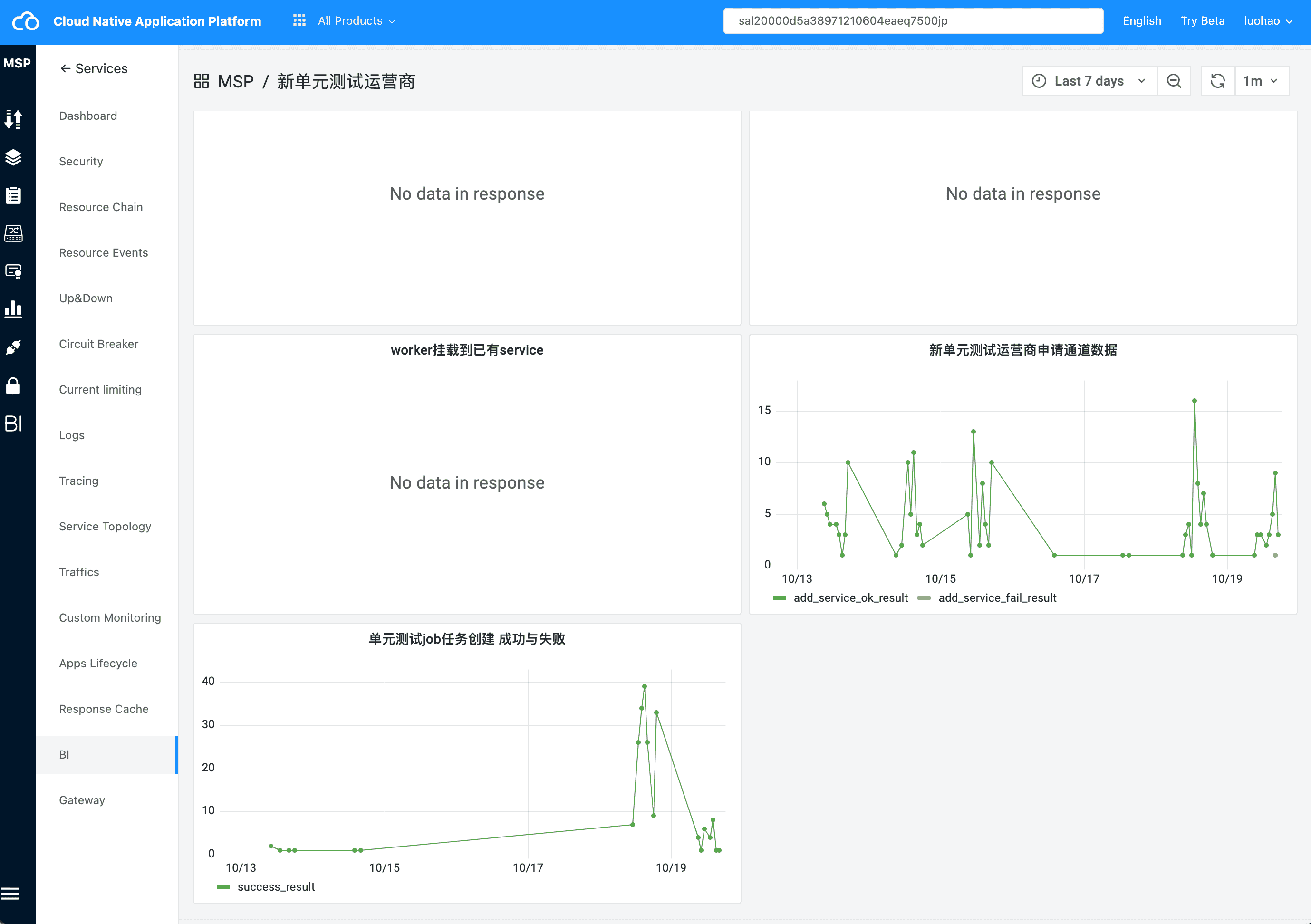
Usage #
The steps are as follows:
- add a dashboard to the service
- configure panel in dashboard
- information viewing
Add New Dashboard for Service #
When entering the “BI” module for the first time, directly click the “configuration” button.
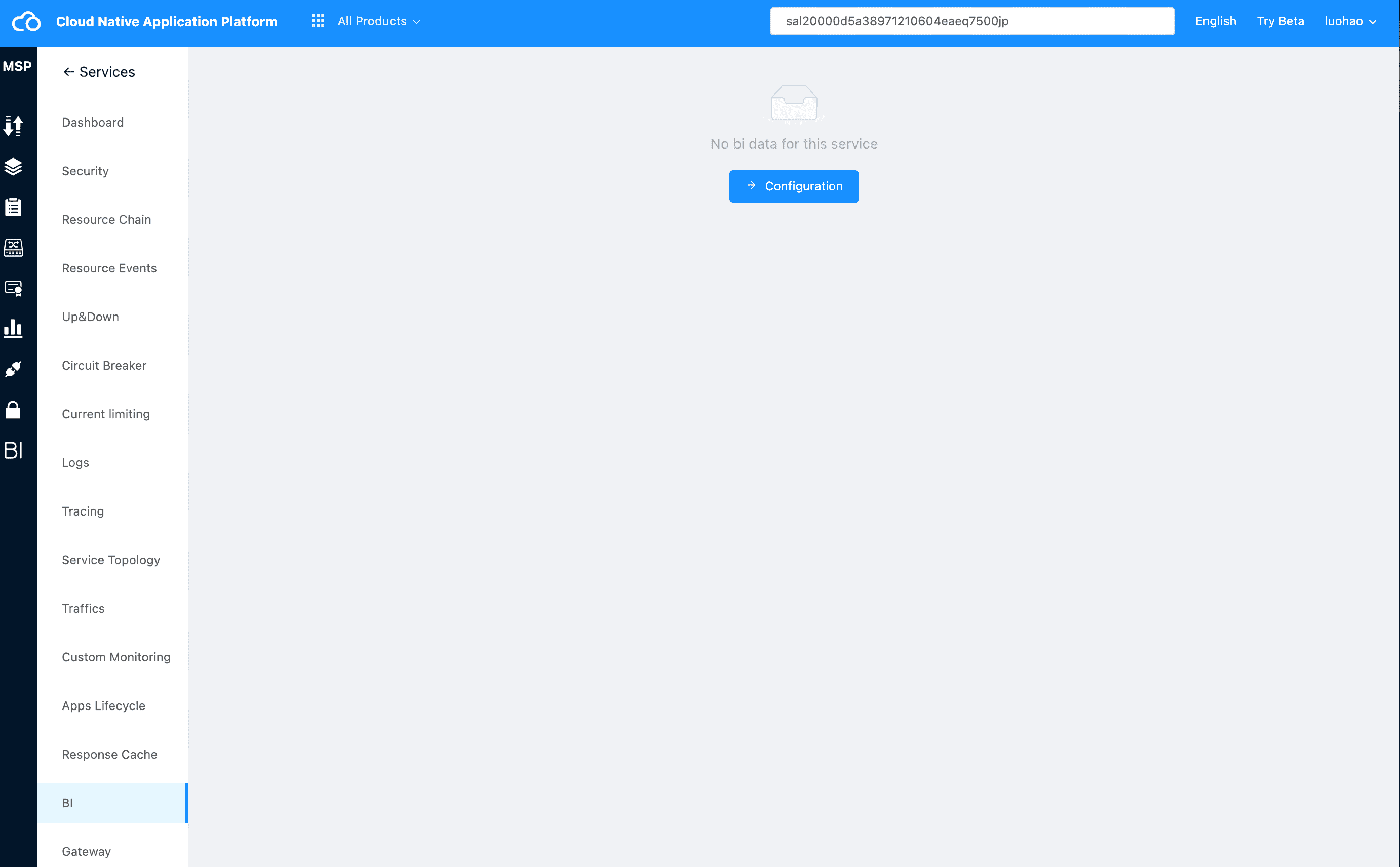
Service has no bi data
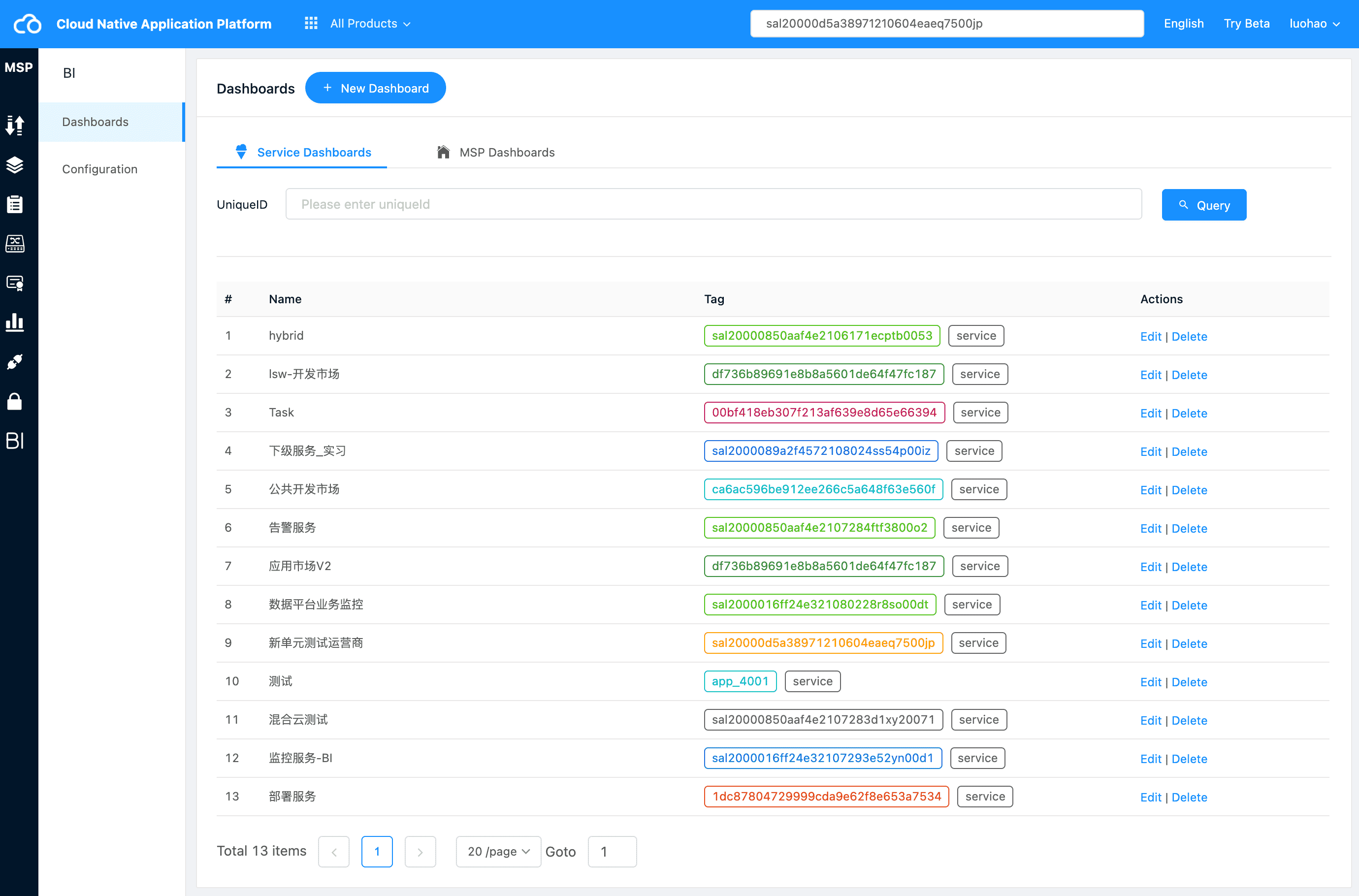
BI Configuration
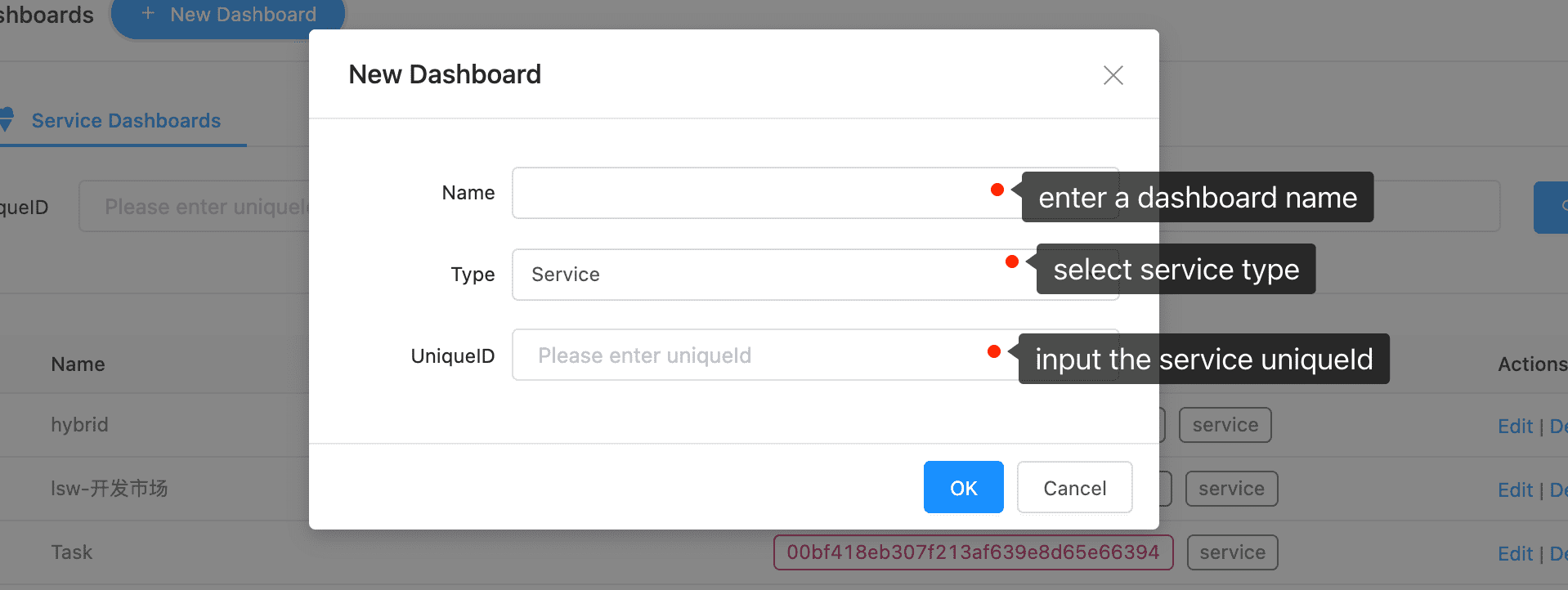
Tips
After filling in the service uniqueID correctly, you can see the dashboard in the “BI” menu of service governance details.
Panel Configuration #
After adding dashboard, we need to configure panel information, which is mainly divided into two parts:
- UI information of panel (layout, chart style)
- panel data information (query statement)
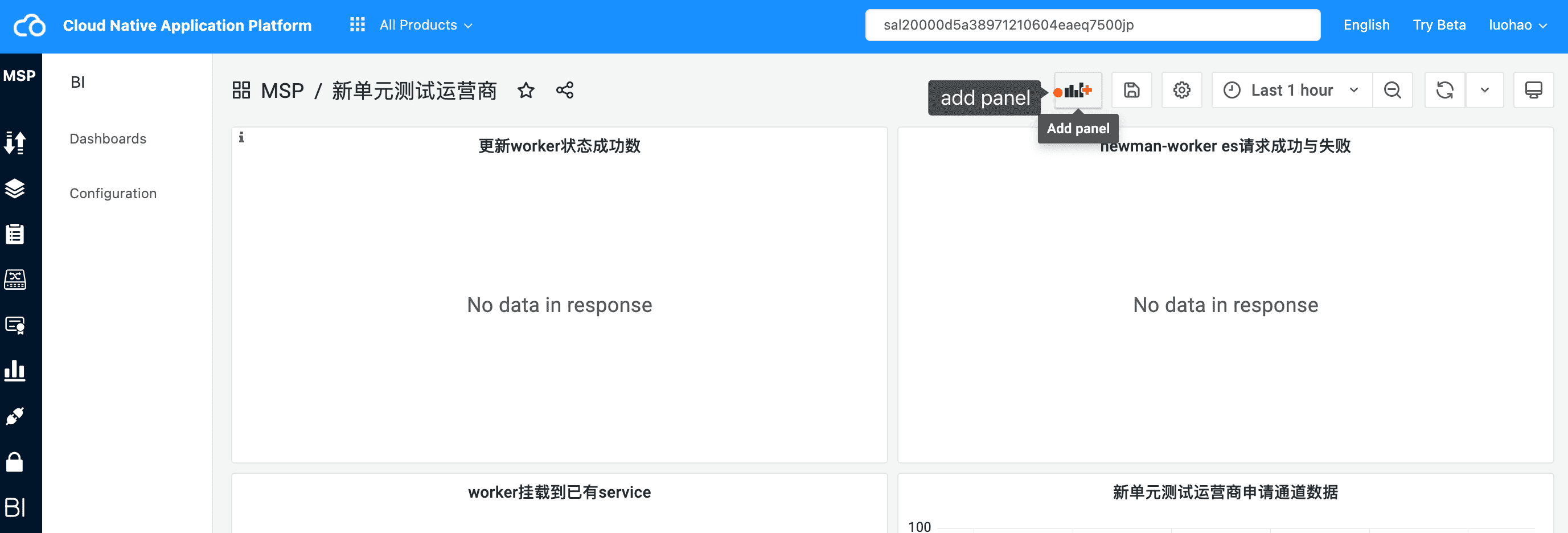
click “add panel” to add Panel
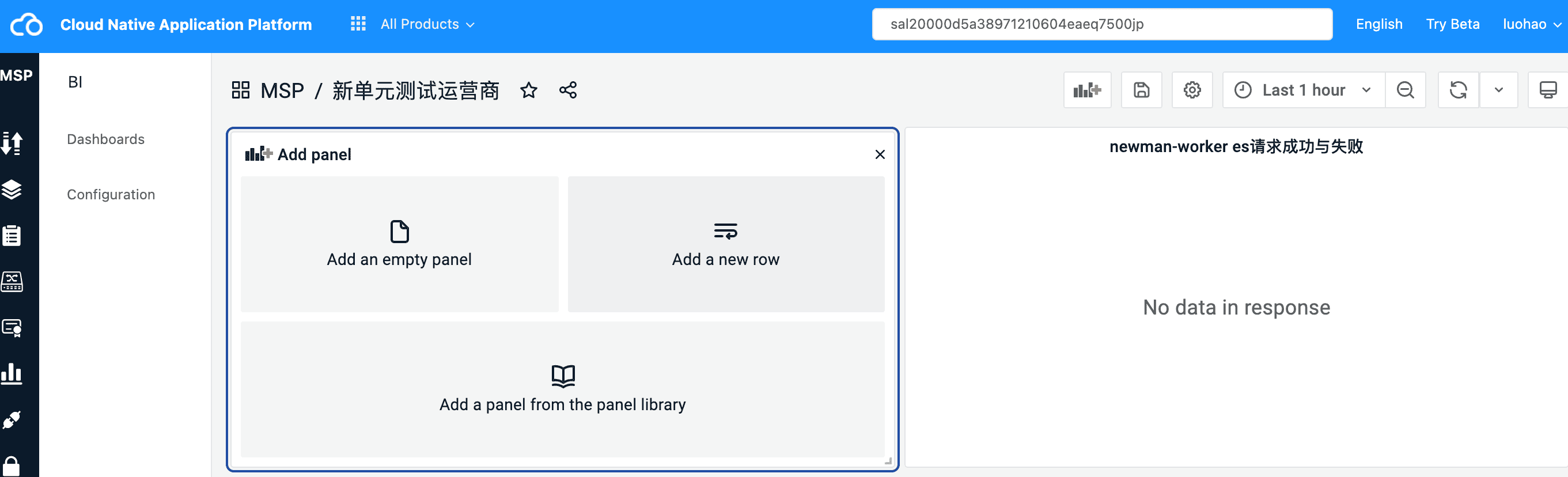
panel added
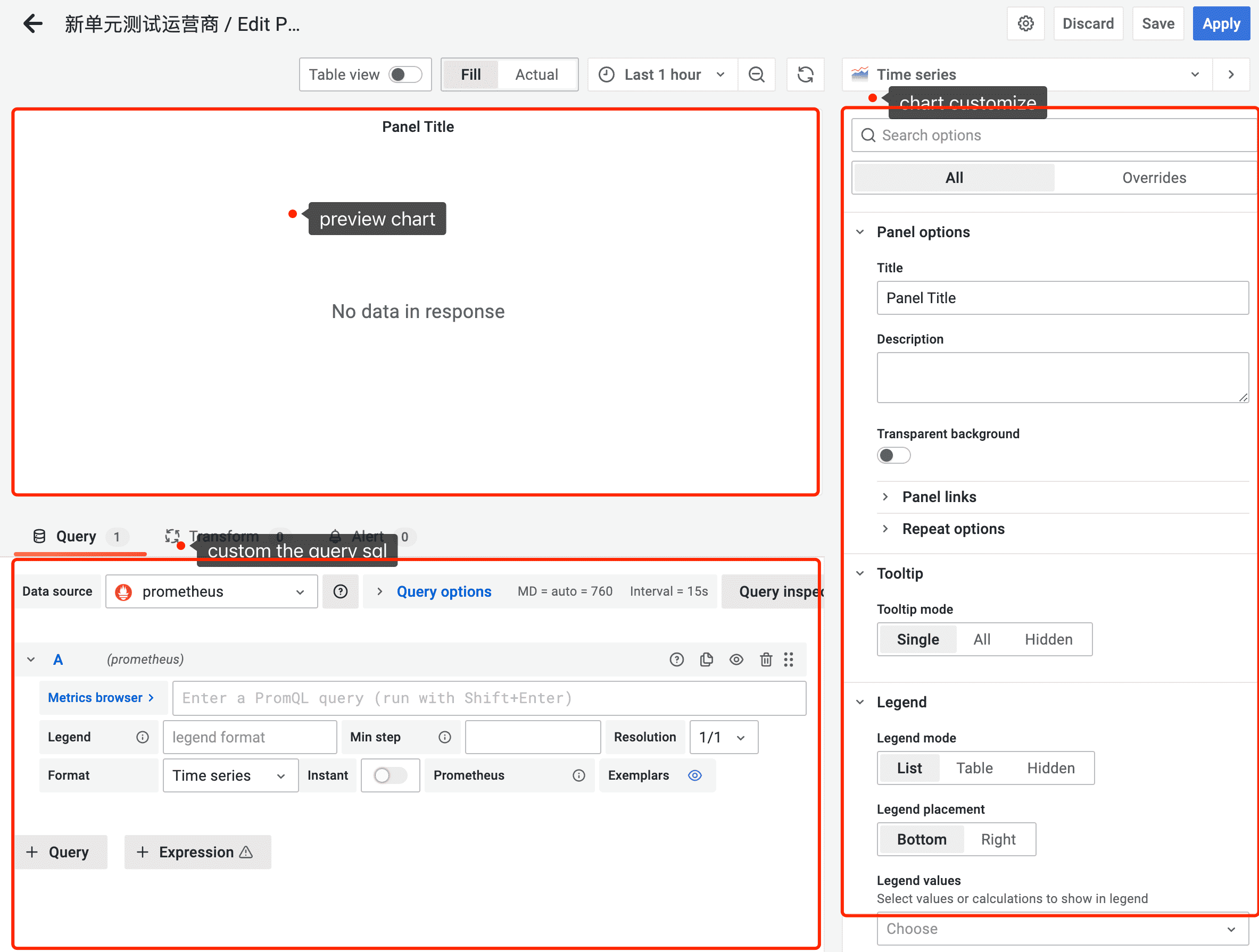
click Add an empty panel, and config panel
View BI #
After the above configuration, you can view specific information in the “BI” menu of the service governance center.