Cluster Management #
Cluster Management Overview #
Multi Cloud Container Platform uses cluster federation to realize unified management of multiple clusters, and supports dynamic cluster access. Through the multi-cluster unified management portal of Cloudy Container Platform, unified deployment, unified publishing and unified operation and maintenance can be realized. At present, weak multi-cluster mode is also supported. If users only need to support unified cluster management, they can choose this mode without using unified deployment and publishing process.
Check Cluster List #
Operating steps:
Log in the MSP Platform
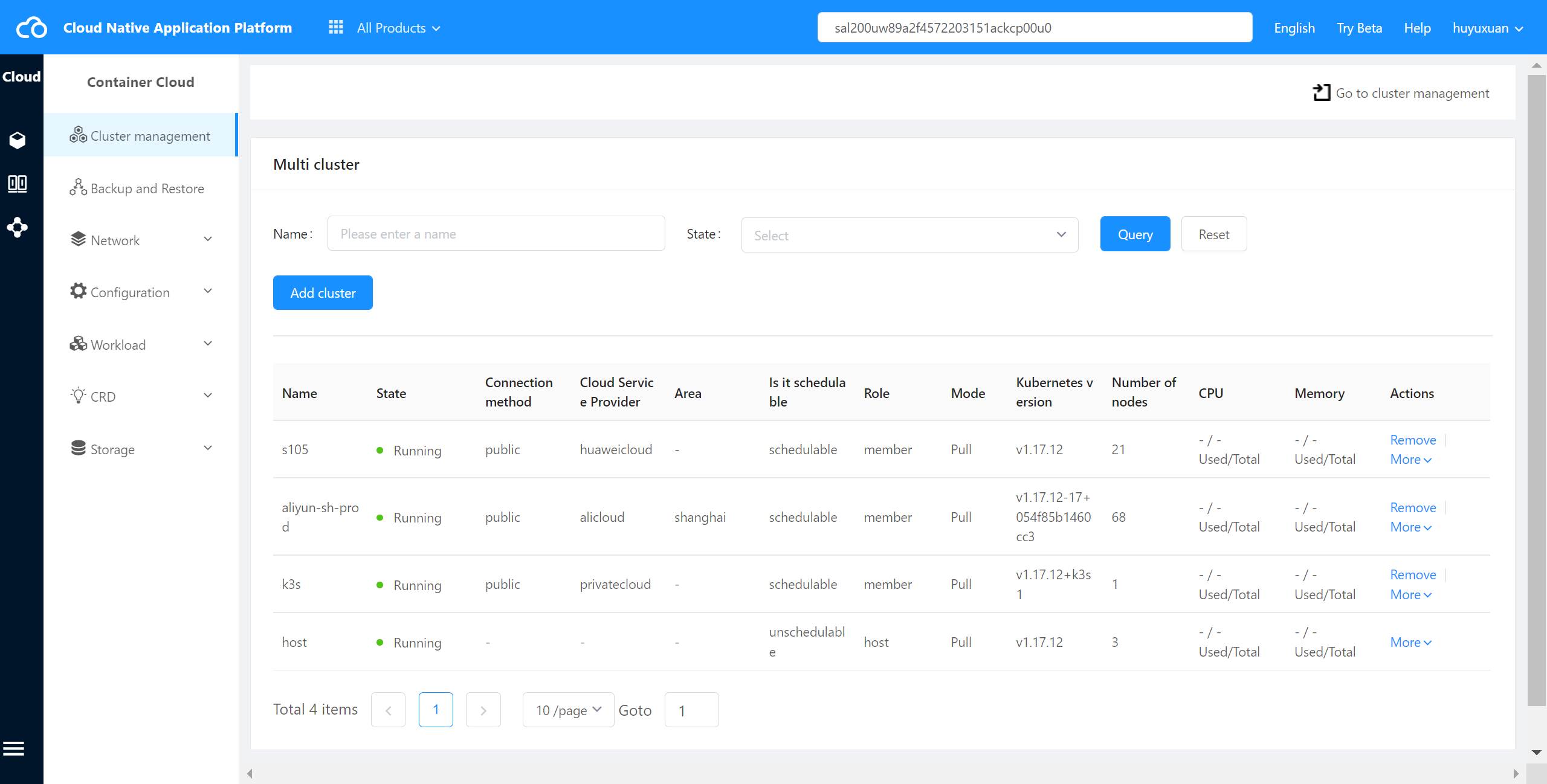
Select the container cloud platform,select “host” multi-cluster for the federated cluster at the top left of the page,and enter the cluster management list page,as shown in the following figure:
Add Cluster #
Precondition
- Ensure that the multi-cluster engine can access the Apiserver address of the member cluster.
- You cannot add the same cluster to the cloudy container platform repeatedly.
Operating steps:
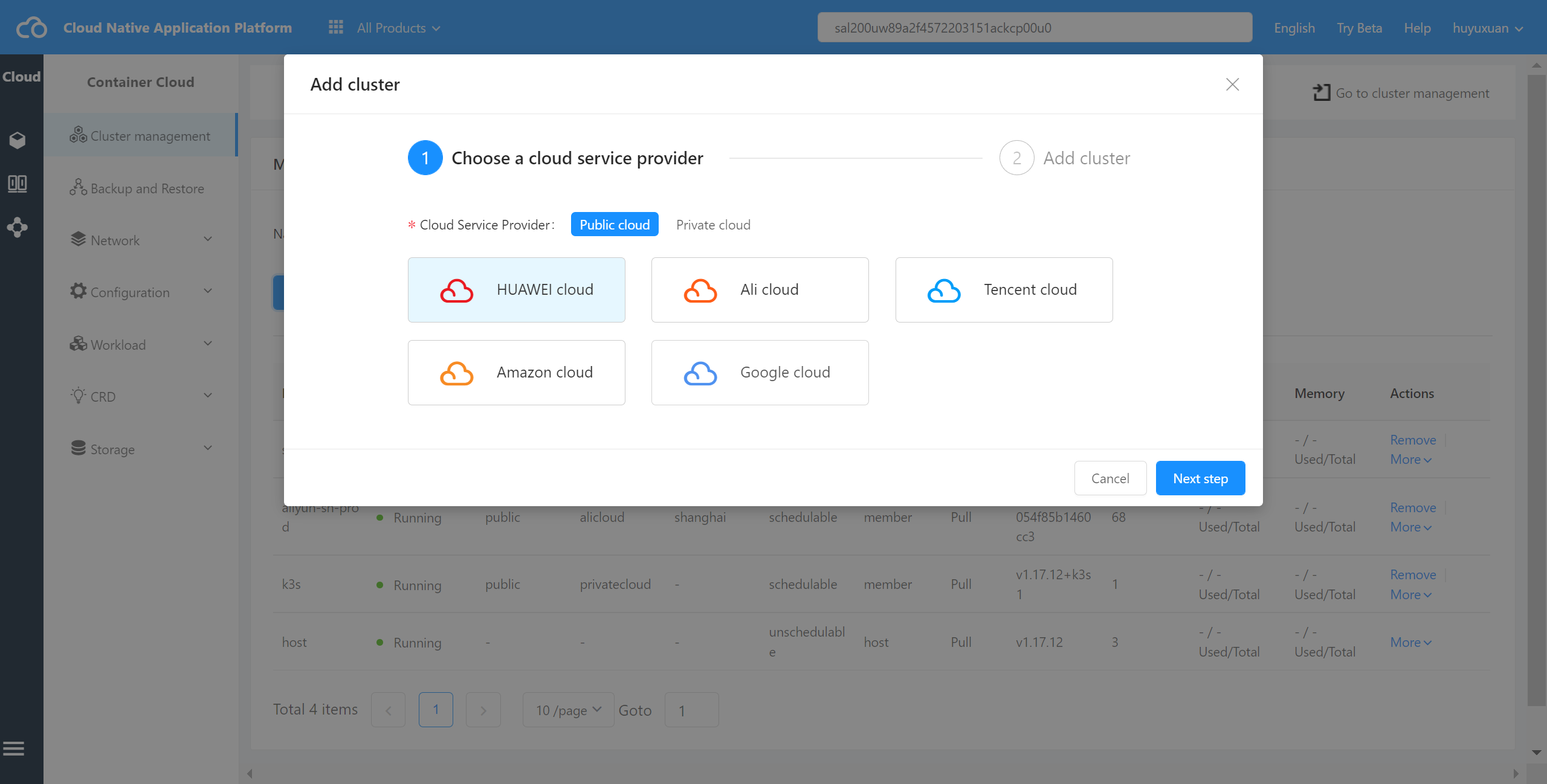
Enter MSP- Cloudy Container Platform and click “Add Cluster” on the “Cluster Management” page.
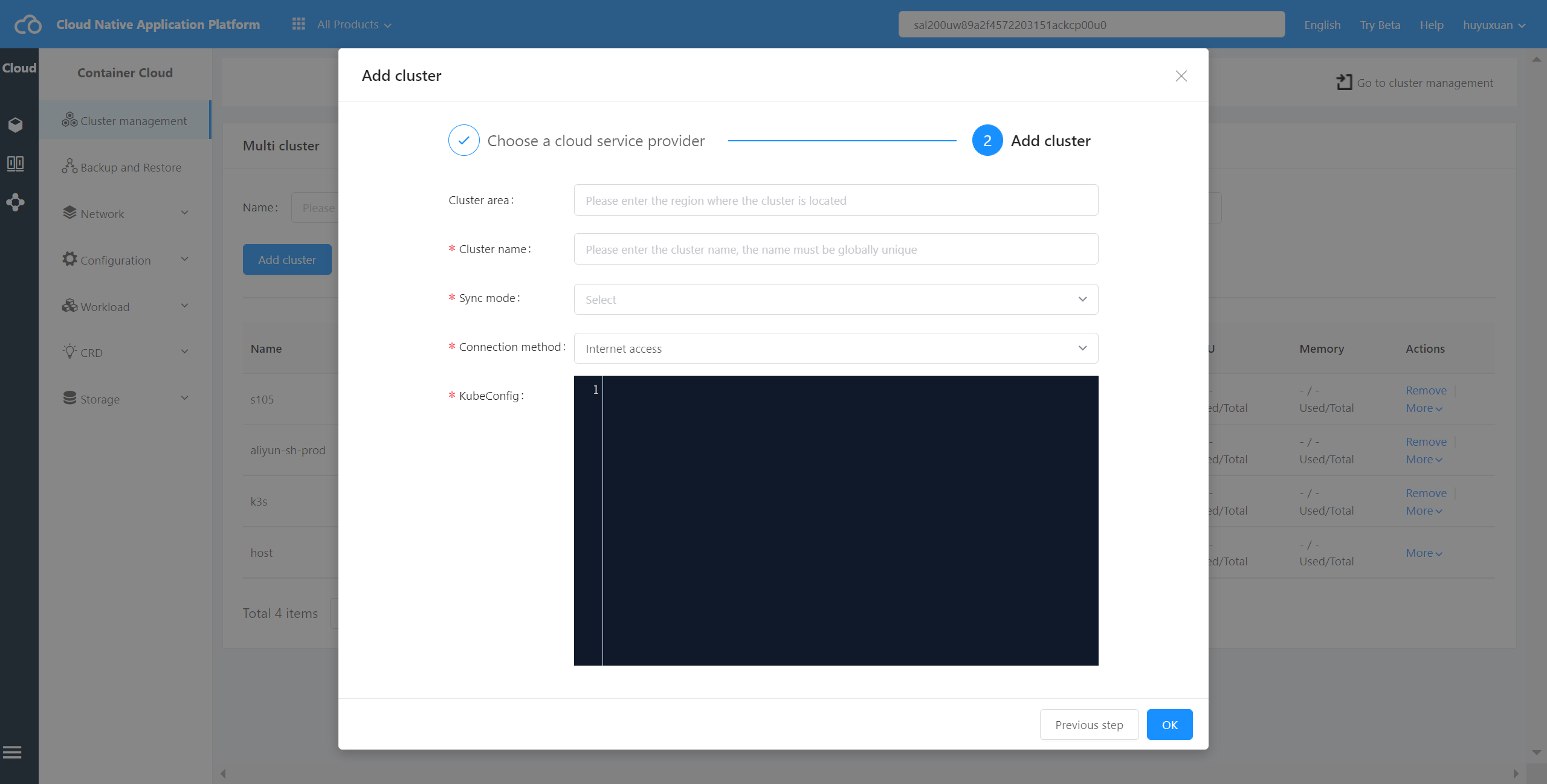
Click next, select the cluster, and set the parameters.
Select area
Fill in the area where the cluster is located and fill it out according to the business.
Set the cluster name
Set the name of the cluster on the cloudy container platform,the name must be globally unique.
Select synchronization mode
The following two modes are supported:
- PULL:Agent will be automatically installed on the cluster provided by you to complete the formation of multiple clusters.
- PUSH:The member cluster provided by you will be accessed from the multi-cluster engine.
Select the connection mode
Only one mode is currently supported
- Public access: the public IP of the cloudy container platform accesses the cluster, which requires memeber cluster to have public IP.
upload kubecofig
The kubeconfig file of the acquired cluster has been uploaded to ensure that the cluster network in this configuration file is connected. The file yaml format is supported.
Other Operations #
Remove the Added Cluster
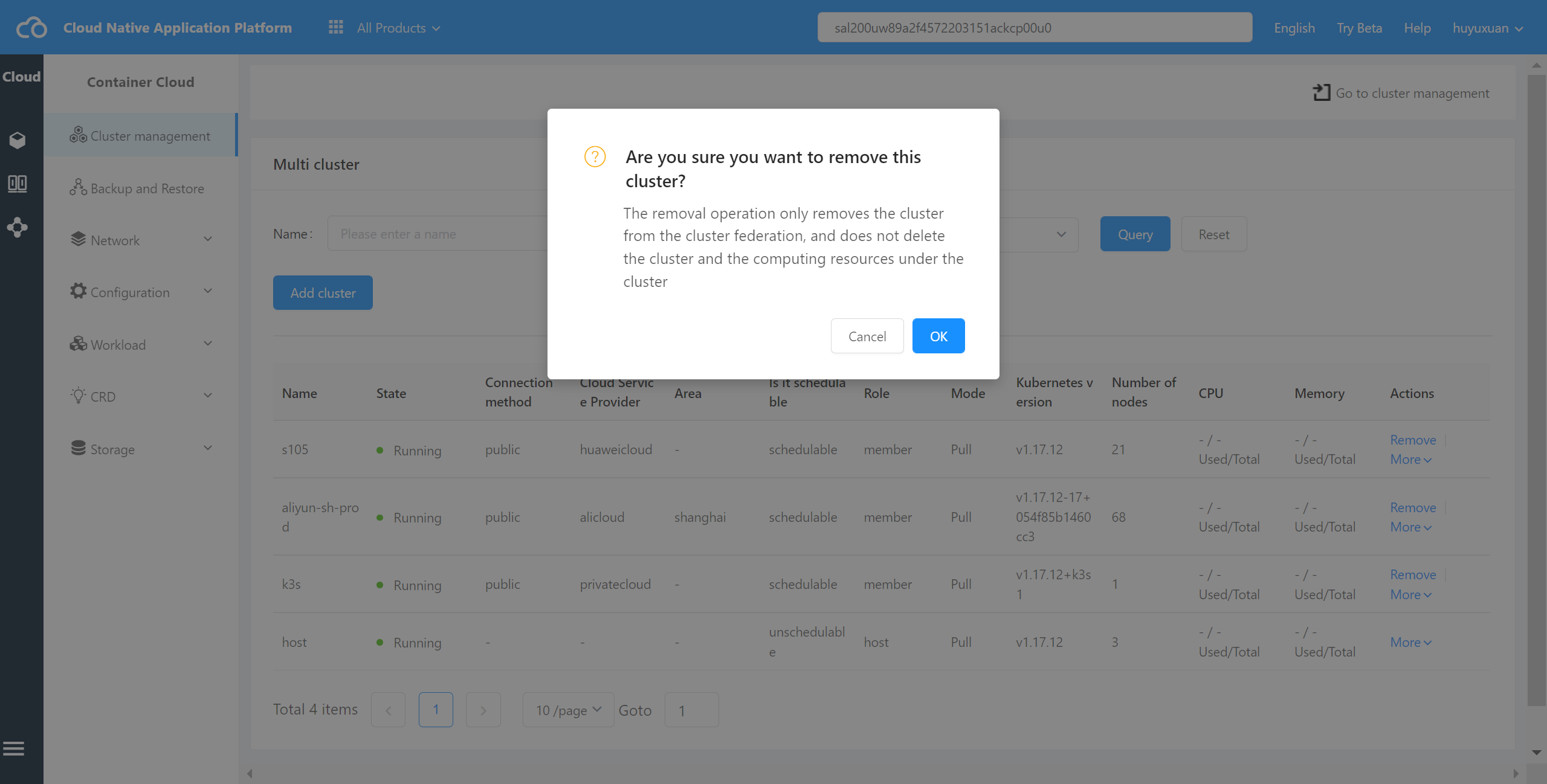
The remove operation only removes the cluster from the cloudy container platform, and does not delete the cluster and the computing resources under the cluster.
- Enter MSP Multi Cloud Container Platform and select “Cluster Management” in the left navigation bar of the host cluster.
- In the list of clusters, click “Remove” after the cluster, and perform the removal operation according to the prompts on the page.
Cluster Scheduling Management
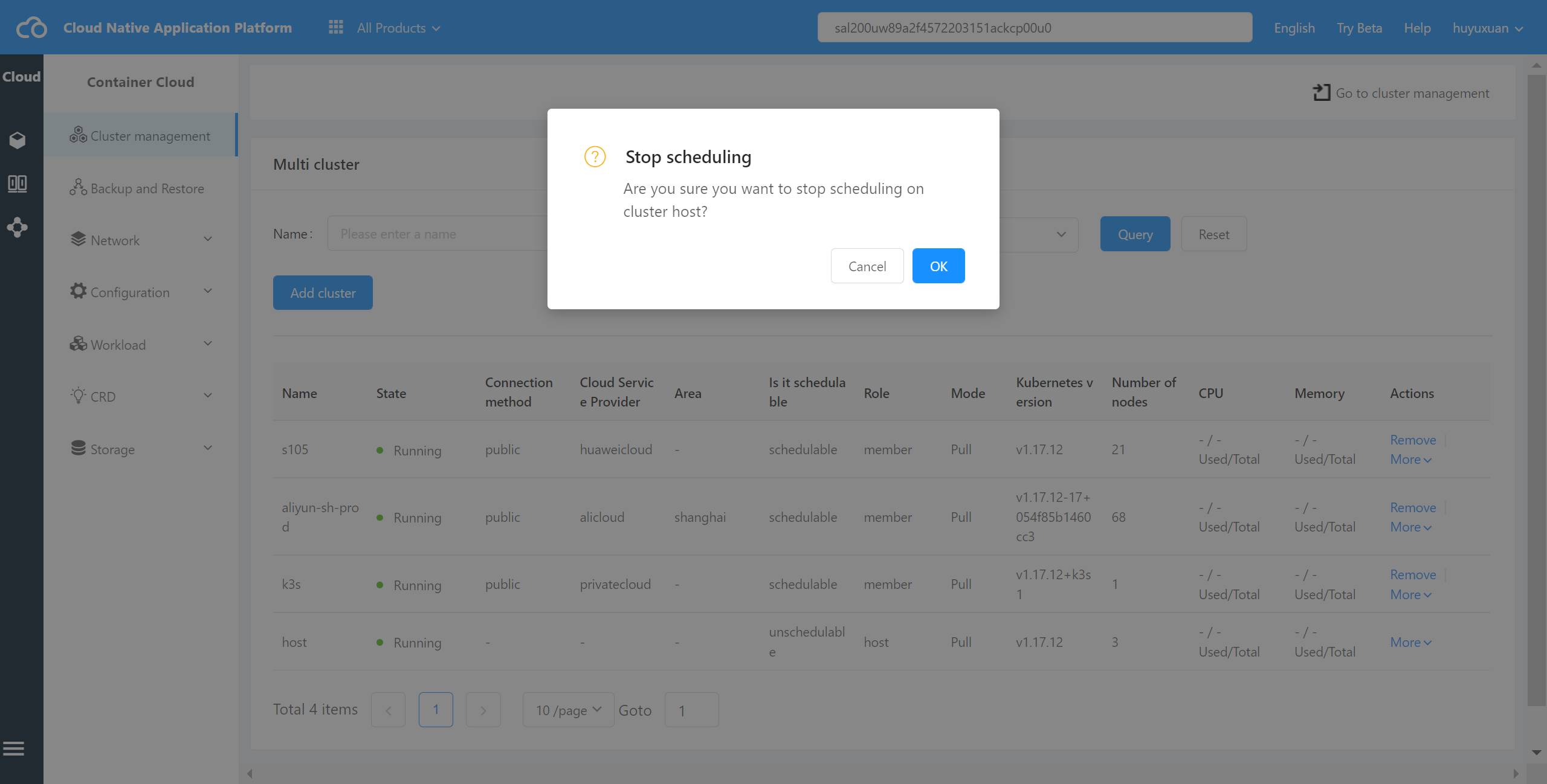
Stop/start scheduling operation is to set whether the cluster supports scheduling from the cloudy container platform, and only support the selection of clusters that can be scheduled when deploying applications.
- Enter MSP Multi Cloud Container Platform and select “Cluster Management” in the left navigation bar of the host cluster.
- In the list of clusters, click “Start Scheduling” or “Stop Scheduling” after the cluster, and perform the scheduling operation according to the page prompts.
Cluster Label Management
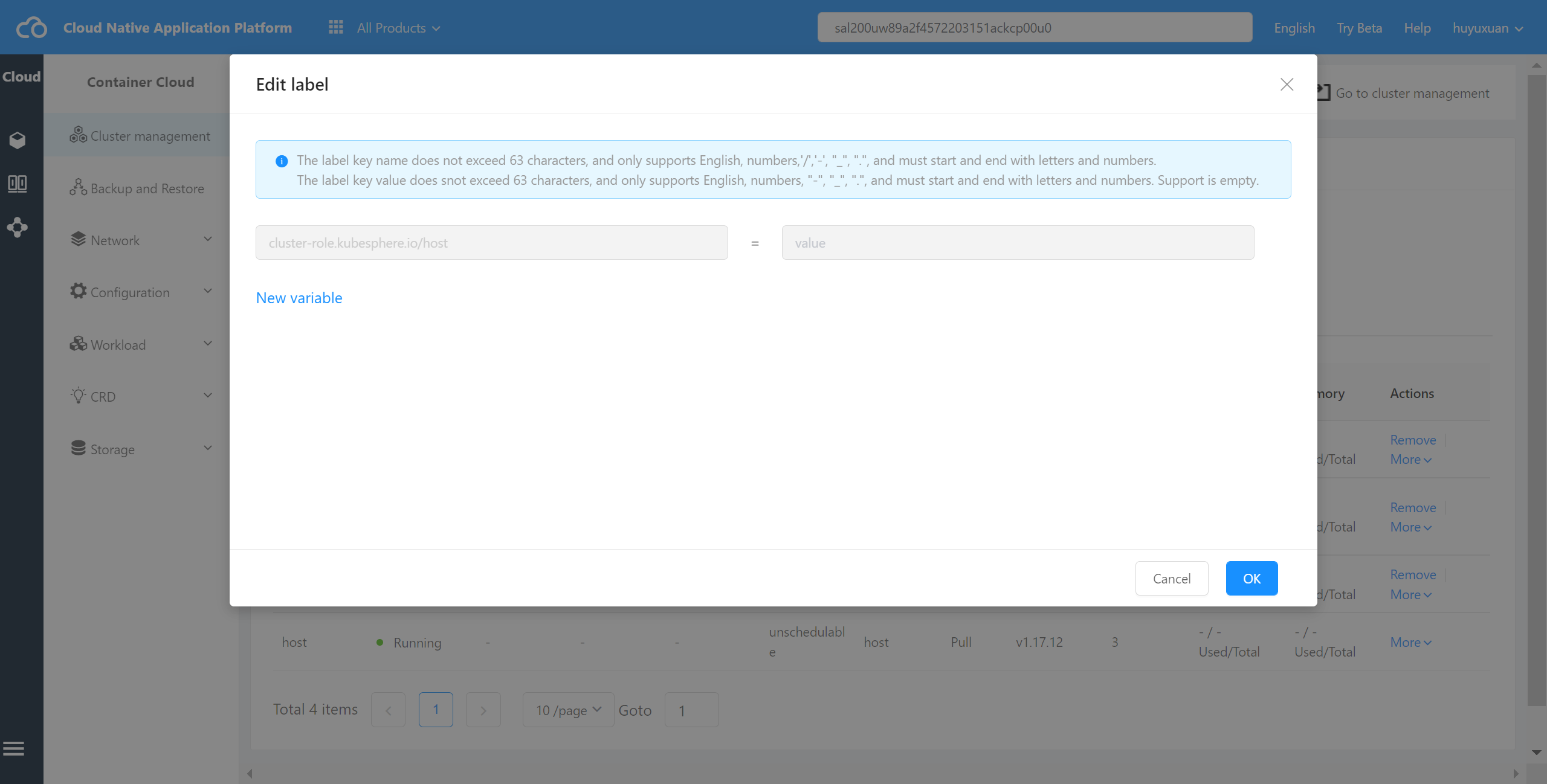
You can manage the labels of federated clusters in the cloud container platform, including adding and deleting labels.
- Enter MSP Multi Cloud Container Platform and select “Cluster Management” in the left navigation bar of the host cluster.
- In the list of clusters, click “Edit Label” after the cluster, and follow the page prompts to edit the label.
Cluster Stain Management
The federated cluster can be managed in cloud container platform, including adding and deleting stains.
- Enter MSP Multi Cloud Container Platform and select “Cluster Management” in the left navigation bar of the host cluster.
- In the list of clusters, click “Edit stain” after the cluster, and follow the page prompts to edit stain.