Container Group (Pods) Management #
Container Group (Pods) Overview #
Container groups (Pods) are the smallest deployable units in Kubernetes.A container group represents a stand-alone application running instance in Kubernetes,which may consist of a single container or several tightly coupled containers.
Check Container Group List #
Operating steps:
Log in the MSP Platform
In the MSP Platform “All Products” navigation bar,click the Workload under the Container Cloud Platform module
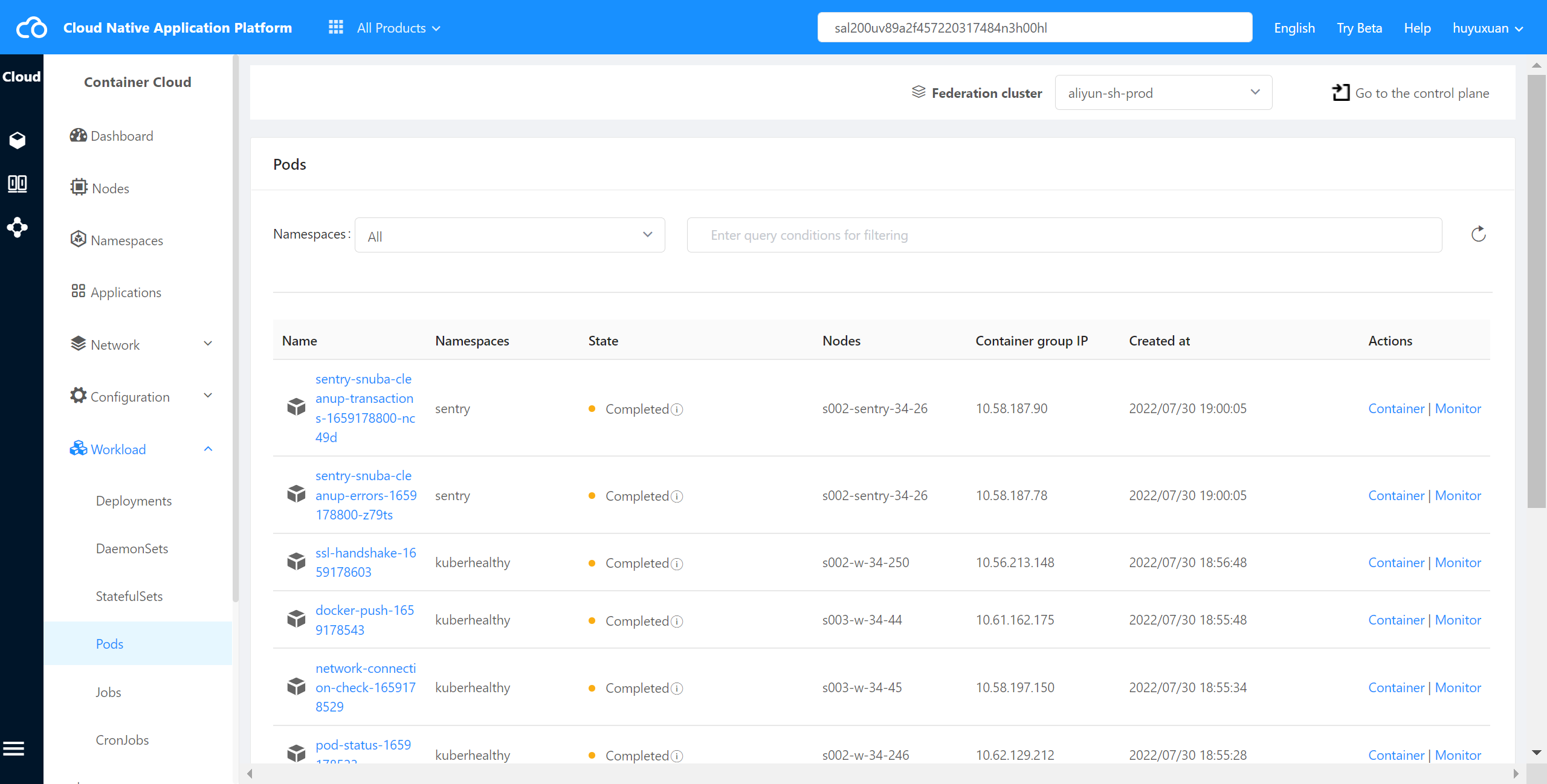
Click “Pod” to enter the Pod list page,as shown in the following figure:
Container Group State #
| State | Description |
|---|---|
| Pending | Waiting |
| Running | Runing |
| CrashLoopBackOff | The container exits and Kubelet is restarting it |
| InvalidImageName | The image name could not be resolved |
| ImageInspectError | Failed to verify mirror |
| ErrImageNeverPull | The policy forbids pulling an image |
| ImagePullBackOff | Retry pull |
| RegistryUnavailable | Failed to connect to the mirror center |
| ErrImagePull | Generic pull mirror error |
| CreateContainerConfigError | Unable to create container configuration used by kubelet. |
| CreateContainerError | Failed to create container |
| internalLifecycle.PreStartContainer | Execute hook error |
| RunContainerError | Failed to create container |
| PostStartHookError | Execute hook error |
| ContainersNotInitialized | The container has not been initialized |
| ContainersNotReady | Container is not ready |
| ContainerCreating | Container being created |
| PodInitializing | Initializing pod |
| DockerDaemonNotReady | Docker hasn’t fully started yet |
| NetworkPluginNotReady | The plug-in is not fully started |
Check Container Group Monitor #
The container cloud platform supports the monitoring of cluster inner container groups,including cpu usage, memory usage, network outflow rate and network inflow rate.
Operating steps:
Log in the MSP Platform
In the MSP Platform “All Products” navigation bar,click the Workload under the Container Cloud Platform module
Click select “Pods"and enter Pods list page,select the desired Pods,click Monitor to access the monitor page,as shown in the following figure:
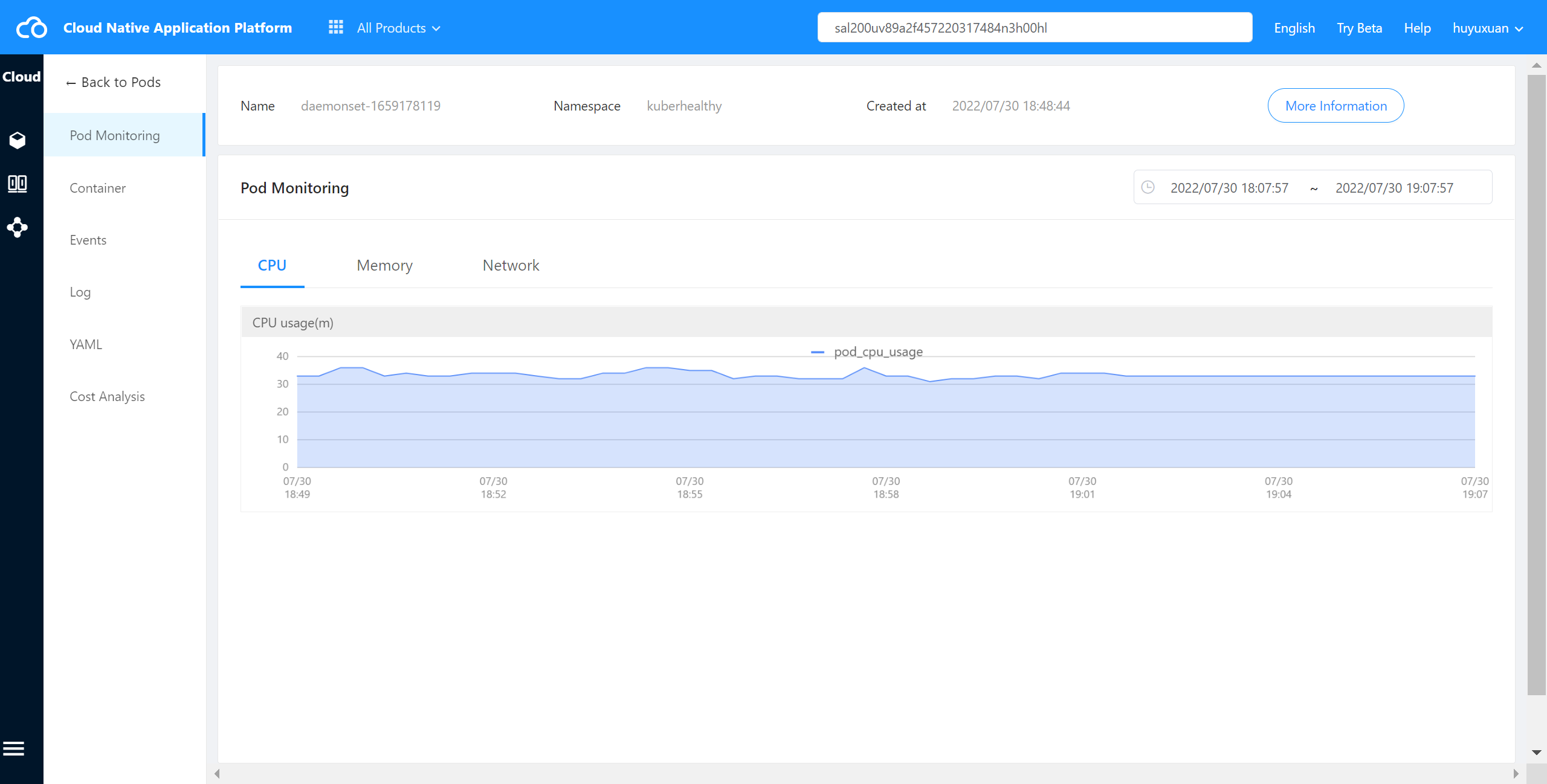
At present,users can also select the required container group in the Deployments,DaemonSets or Pod management page under the node of the workload,and click Monitor to view it.
Check Container Monitor #
The container cloud platform supports the monitoring of cluster container groups,including cpu usage and memory usage.
Operating steps:
Log in the MSP Platform
In the MSP Platform “All Products” navigation bar,click the Workload under the Container Cloud Platform module
Click select “Pods"and enter Pods list page,select the desired Pods,click Name or acton column Container to enter the container list page
4)Select the required container, and click “Monitor” to enter the container log page,as shown in the following figure:
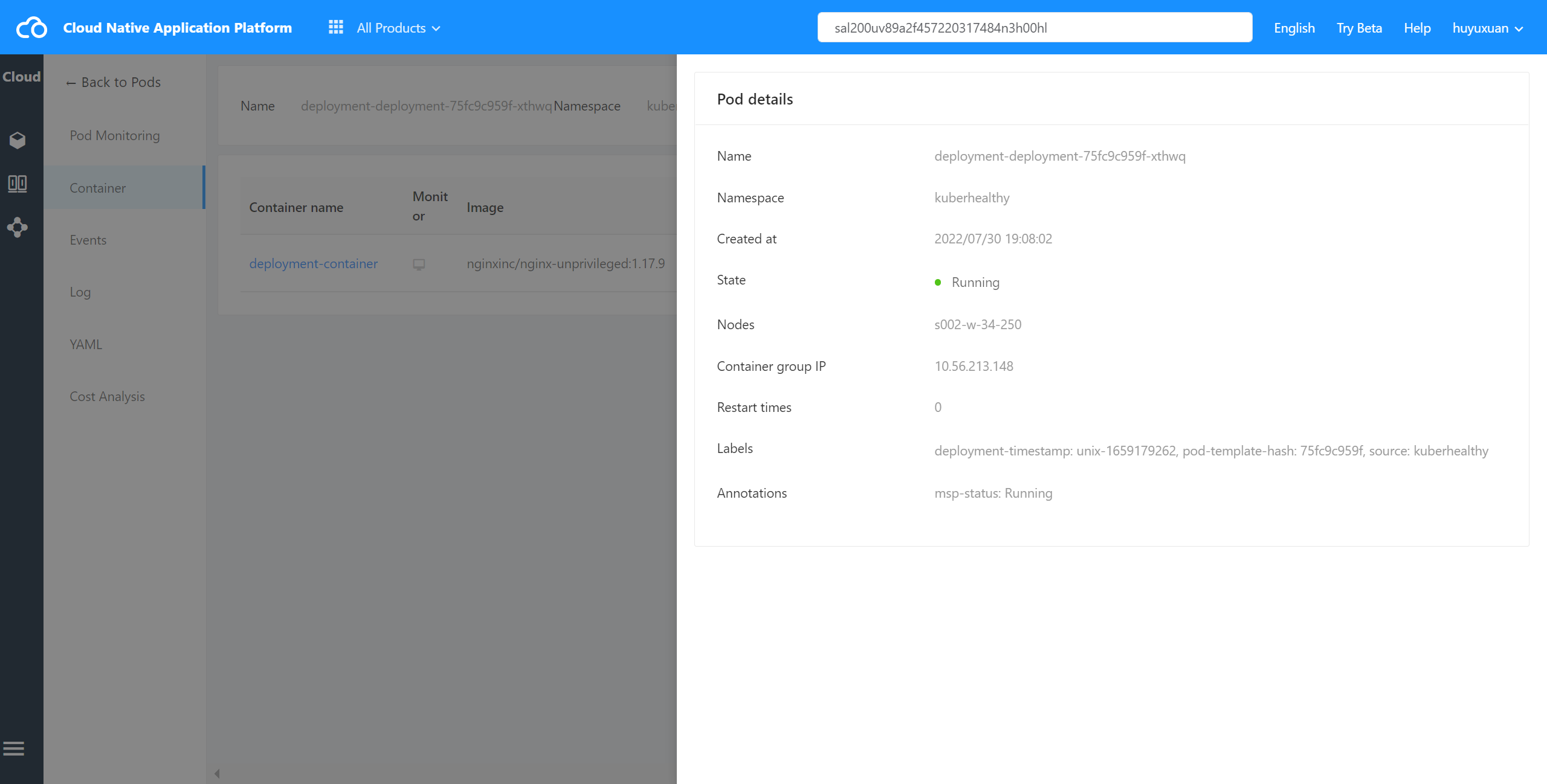
At present,users can also select the required container group in the Deployments, DaemonSets or Pod management page under the node of the workload, click collapse, select the required container,and click Monitor to view.
Check Container Group Log #
The container cloud platform supports real-time viewing of container log stream.
Operating steps:
Log in the MSP Platform
In the MSP Platform “All Products” navigation bar,click the Workload under the Container Cloud Platform module
Click select “Pods"and enter Pods list page,select the desired Pods,click Name to go to the details page.
Click Log on the right side of the navigation bar to enter the log page of the container group, which supports viewing the log of each container in the container group as shown in the following figure:
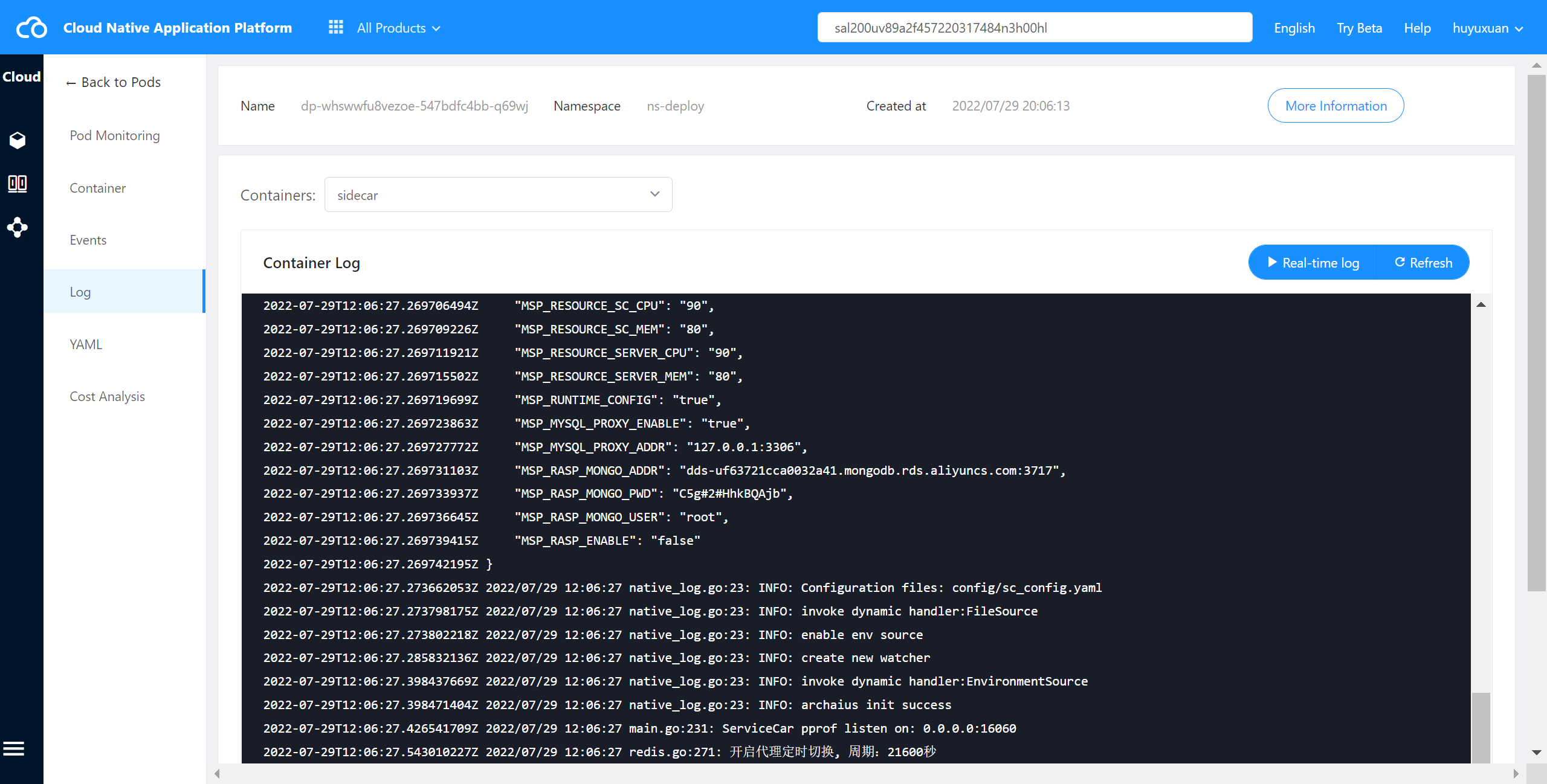
Check Container Log #
Operating steps:
Log in the MSP Platform
In the MSP Platform “All Products” navigation bar,click the Workload under the Container Cloud Platform module
Click select “Pods"and enter Pods list page,select the desired Pods,click Name or acton column Container to enter the container list page
Select the required container,and click Terminal Log to enter the container log page,as shown in the following figure:
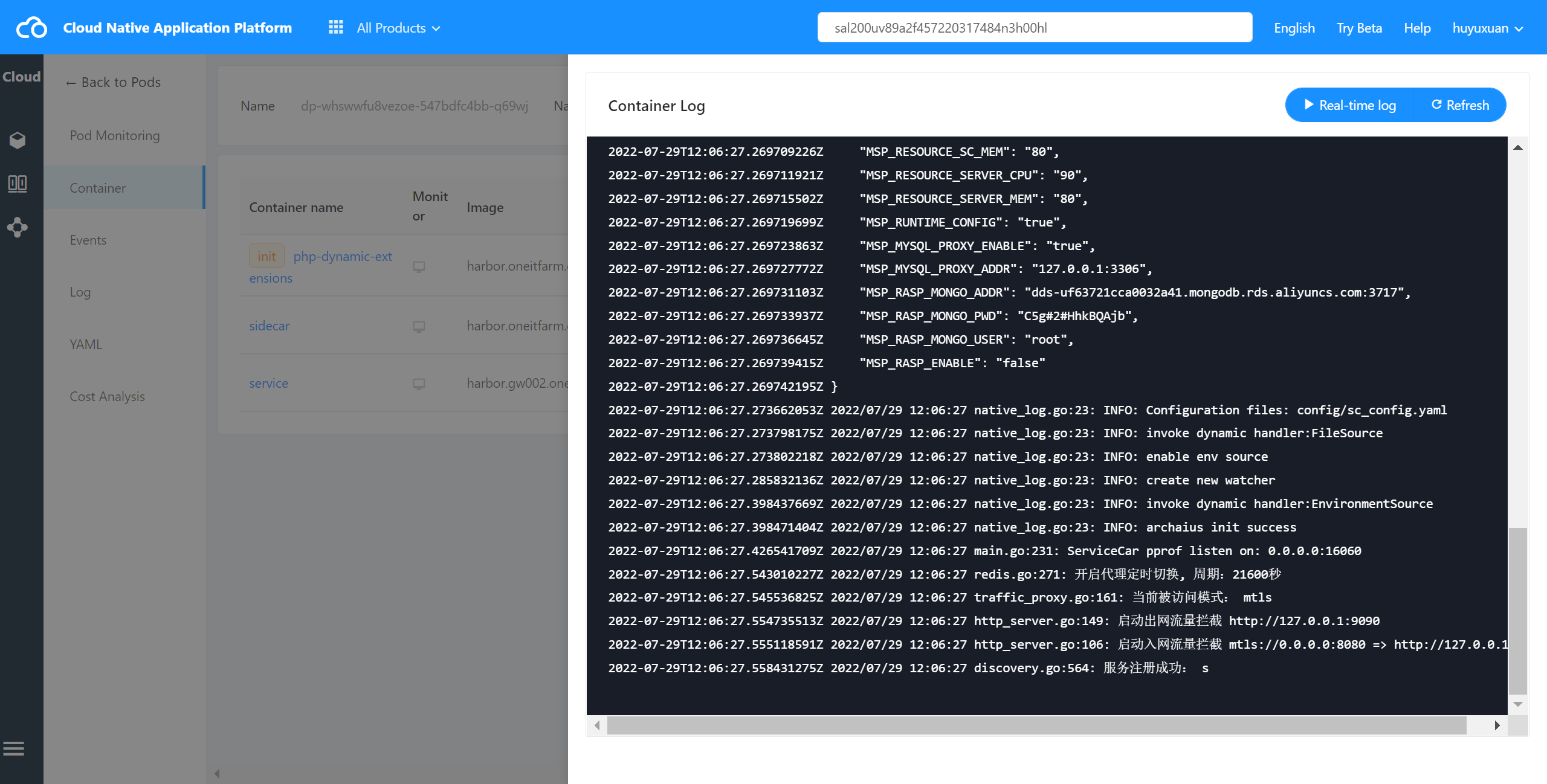
Users can also view the container log in the Deployments, DaemonSets or Pod management page under the node of the workload.
Remote Login Container #
The container cloud platform supports the remote login of the cluster container, the remote terminal helps users debug the container quickly, connect the container to view problems, and the init container does not support remote login.
Operating steps:
Log in the MSP Platform
In the MSP Platform “All Products” navigation bar,click the Workload under the Container Cloud Platform module
Click select “Pods"and enter Pods list page,select the desired Pods,click Name or acton column Container to enter the container list page
Select the required container,and click “Telnet” to enter the Telnet page,as shown in the following figure:
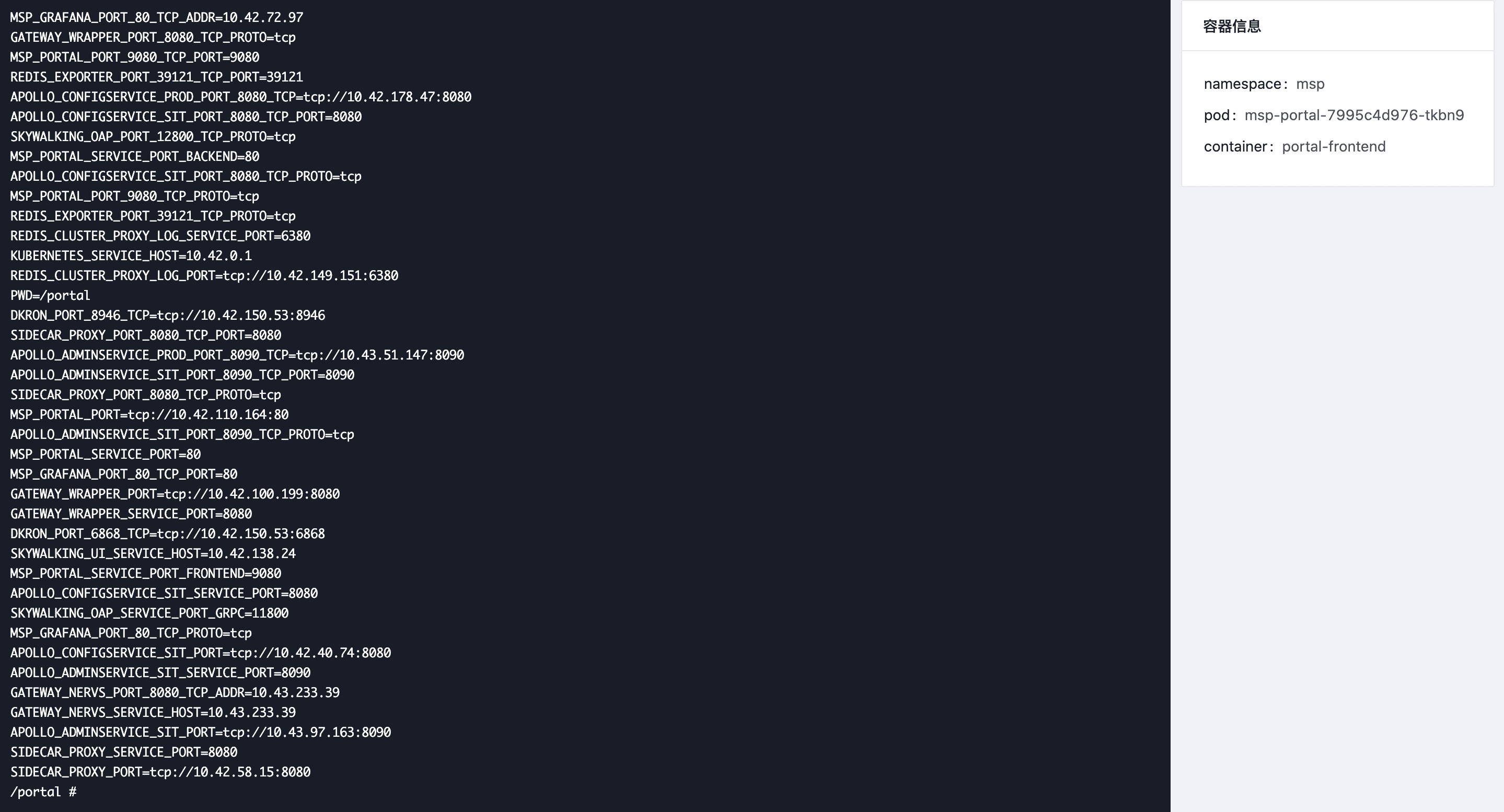
At present,the user can also select the required container group in the Deployments, DaemonSets or Pod management page under the node of the workload,click Collapse,select the required container,and click Telnet to view.
Check Container Group Event #
The container cloud platform supports real-time viewing of all the events of the container,and displays the abnormal events visually,which is convenient for users to intuitively see the abnormal event types and frequency of pod in a certain time range.
Operating steps:
Log in the MSP Platform
In the MSP Platform “All Products” navigation bar,click the Workload under the Container Cloud Platform module
Click select “Pods"and enter Pods list page,select the desired Pods,click Name to go to the details page.
Click events on the right side of the navigation bar to enter the container group events page,which supports viewing the events of the container group,as shown in the following figure: