Application Market #
Overview #
The application market is a public application warehouse on the platform.The application market generates application services (CafeDeployment) with one click based on the application templates defined by OAM model. You can quickly create application services by customizing OAM templates.
OAM aims to promote the application management technology to the direction of light operation and maintenance through a brand-new model of application definition, operation and maintenance, distribution and delivery.For Kubernetes,OAM is not only a standard application definition project (similar to Kubernetes Application CRD project, which is no longer active),but also a platform-level project that focuses on packaging,norganizing and managing various operation and maintenance capabilities in Kubernetes, and connecting operation and maintenance capabilities with applications.By simultaneously providing the two core functions of defining applications and organizing and managing the operation and maintenance capabilities of applications.
In OAM,an application contains three core concepts:
- Component:Component that make up the application, which may include microservice collection, database and cloud load balancer.
- Trait:Describe the collection of application operation and maintenance features,such as elastic scaling and Ingress.They are essential to the operation of applications,but they are implemented differently in different environments.
- Application Configuration:Finally,in order to translate these descriptions into specific applications, operation and maintenance personnel use application configuration to combine components and corresponding features to build specific instances of applications that should be deployed.
Check Application Market #
Operating steps:
Log in the MSP Platform
In the MSP Platform “All Products” navigation bar,click the App Store under the Container Cloud Platform module
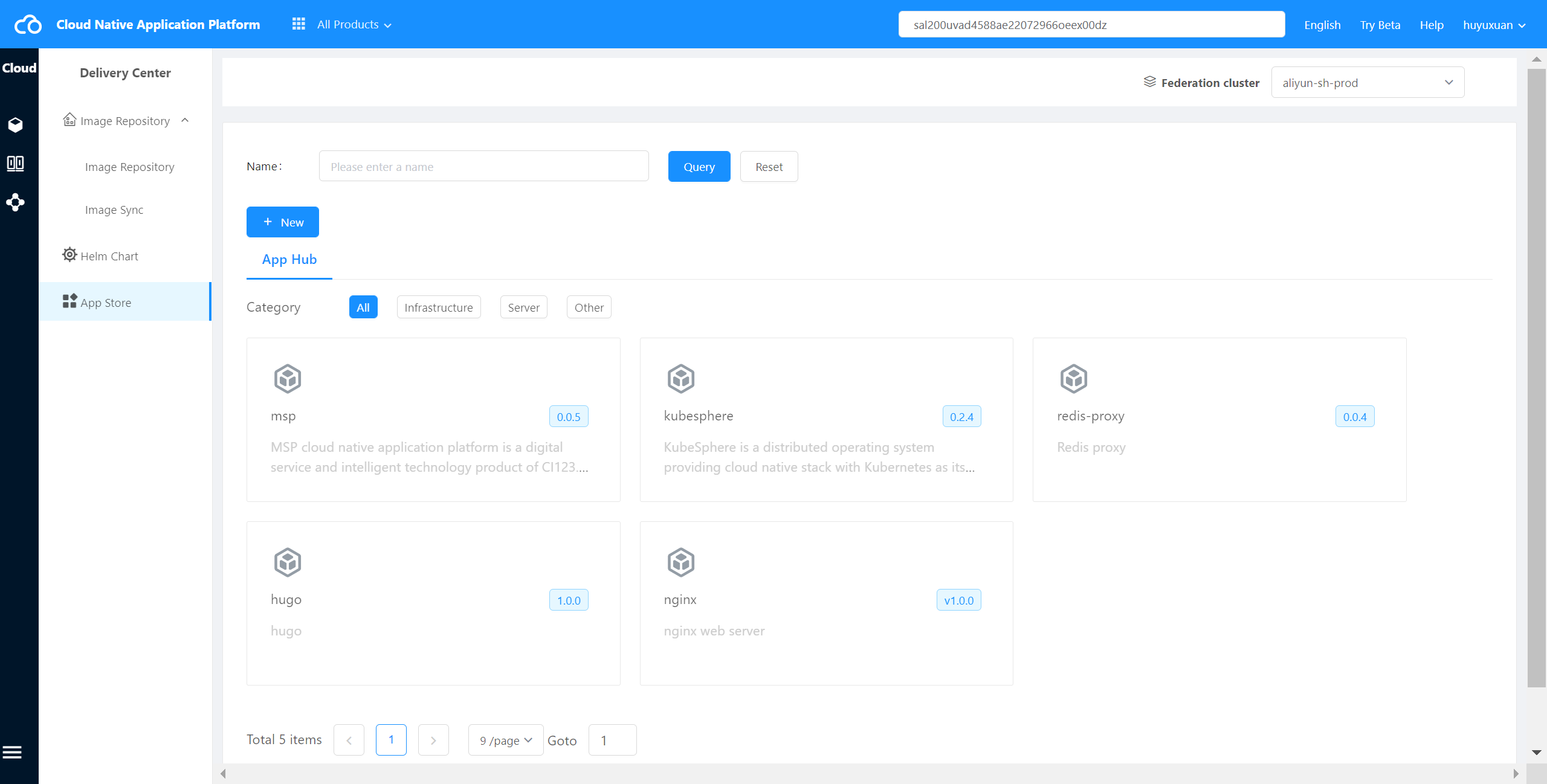
Click “Application Market” to enter the application market list page,as shown in the following figure:
View-Component Details #
Operating steps:
Log in the MSP Platform
In the MSP Platform “All Products” navigation bar,click the App Store under the Container Cloud Platform module
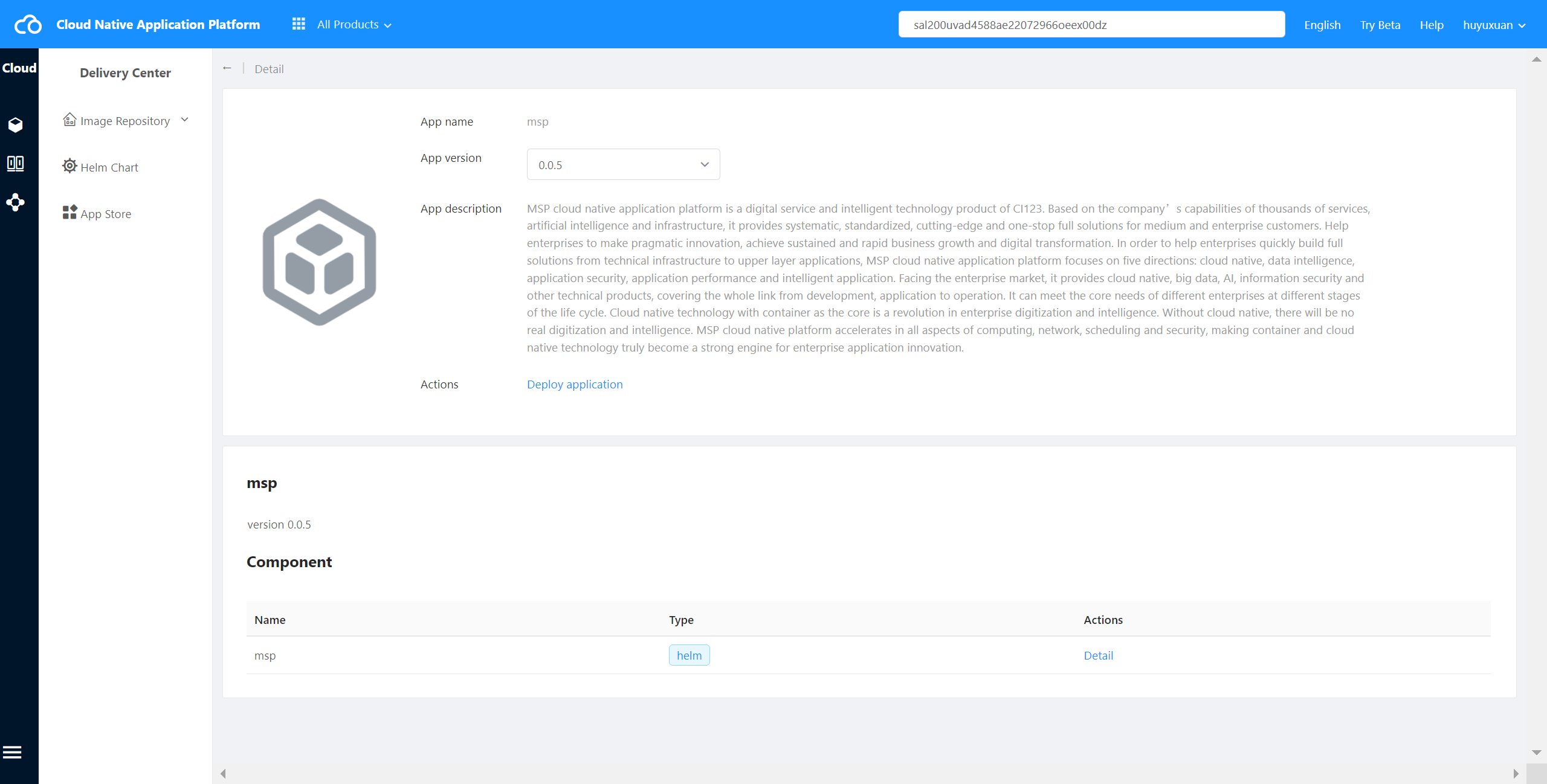
Click “Application Market” to enter the application market list page,select the required application and click Application to enter the details page,as shown in the following figure:
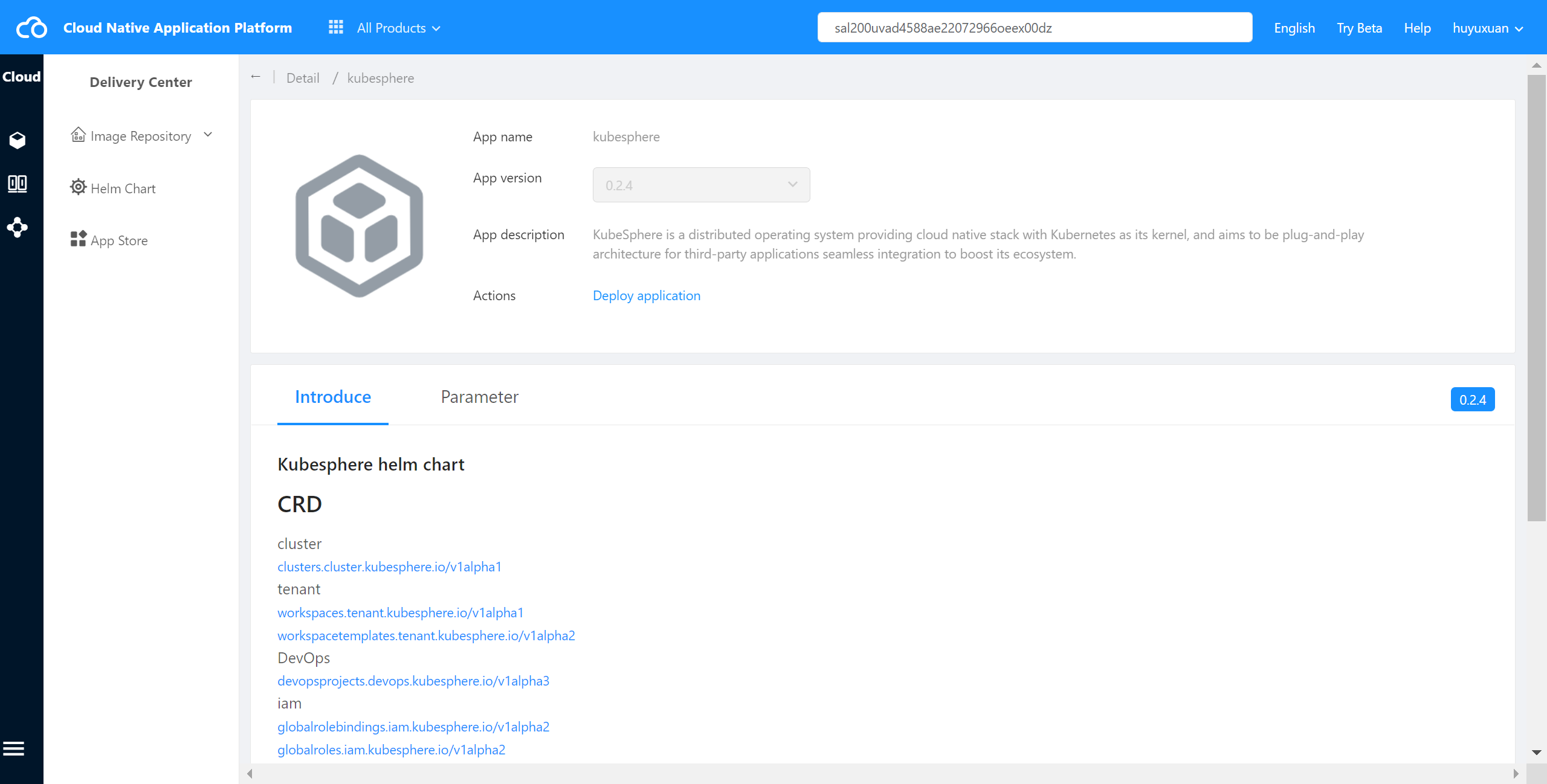
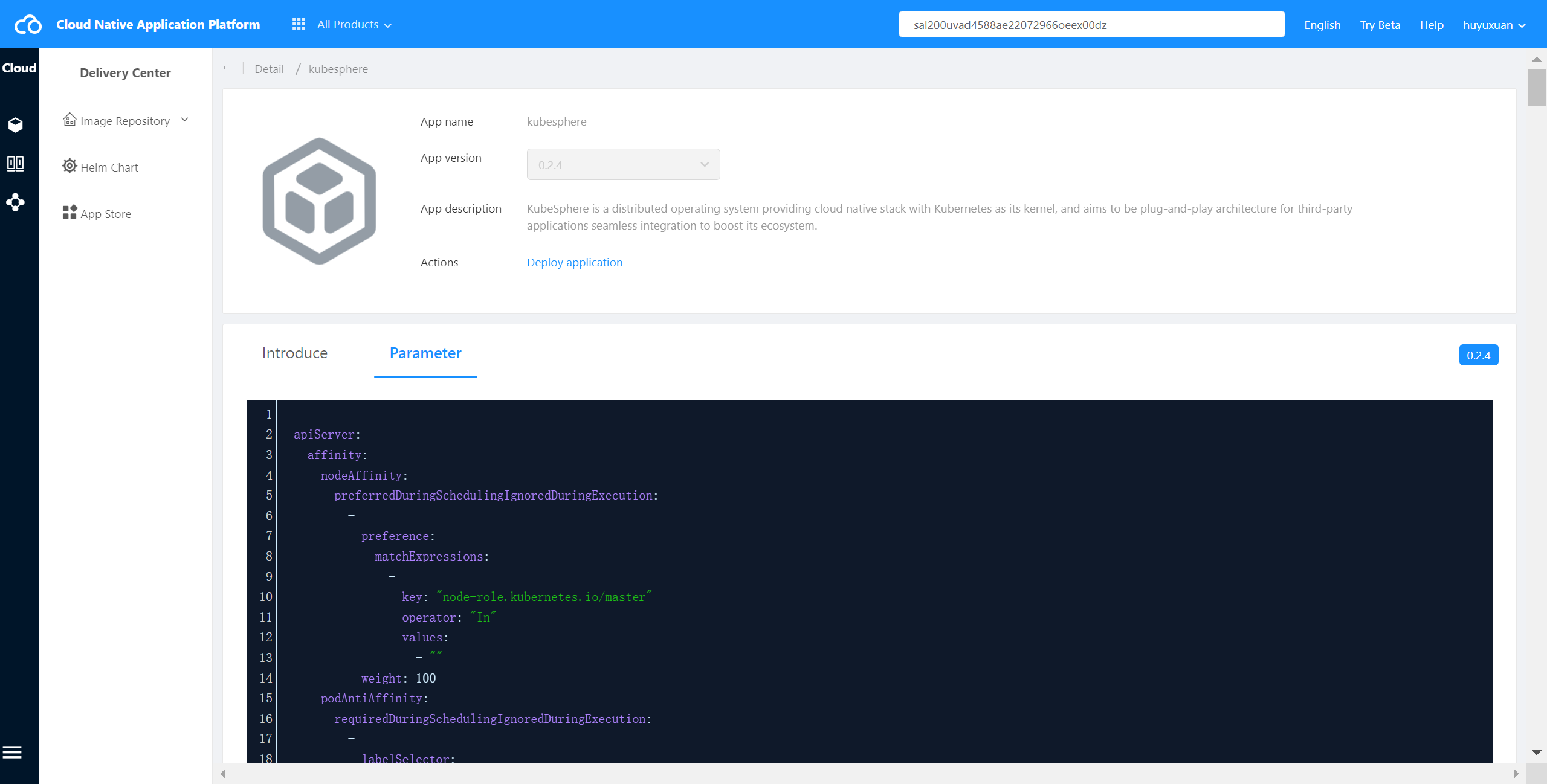
- Select a component in the Component list,and click “Details” to enter the component details page,view the component introduction and component template parameters as shown in the following figure:
Deploy Application #
Operating steps:
Log in the MSP Platform
Enter the application market list page,select the required application,and click Application to enter the details page.
Click Deploy Application in the upper part,and fill in the following configuration in the pop-up page
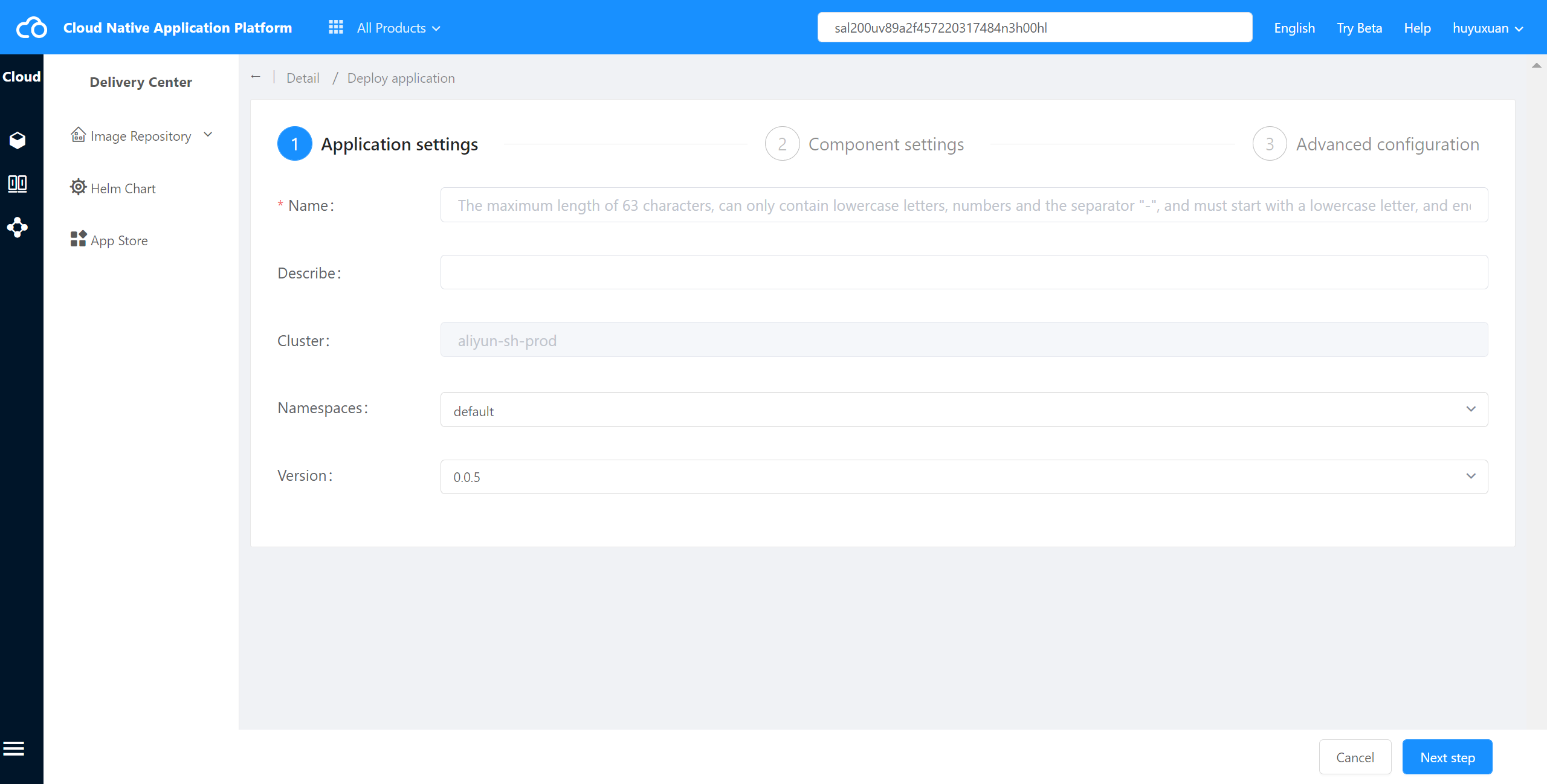
First step:
- Name: English lowercase letters, numbers and dashes are supported.They must start with English lowercase letters,and the maximum length is 64 characters.
- Namespace: Select the appropriate namespace.
- Version: Select the version of the template.
After filling it out,click Next, as shown below:
Second step:
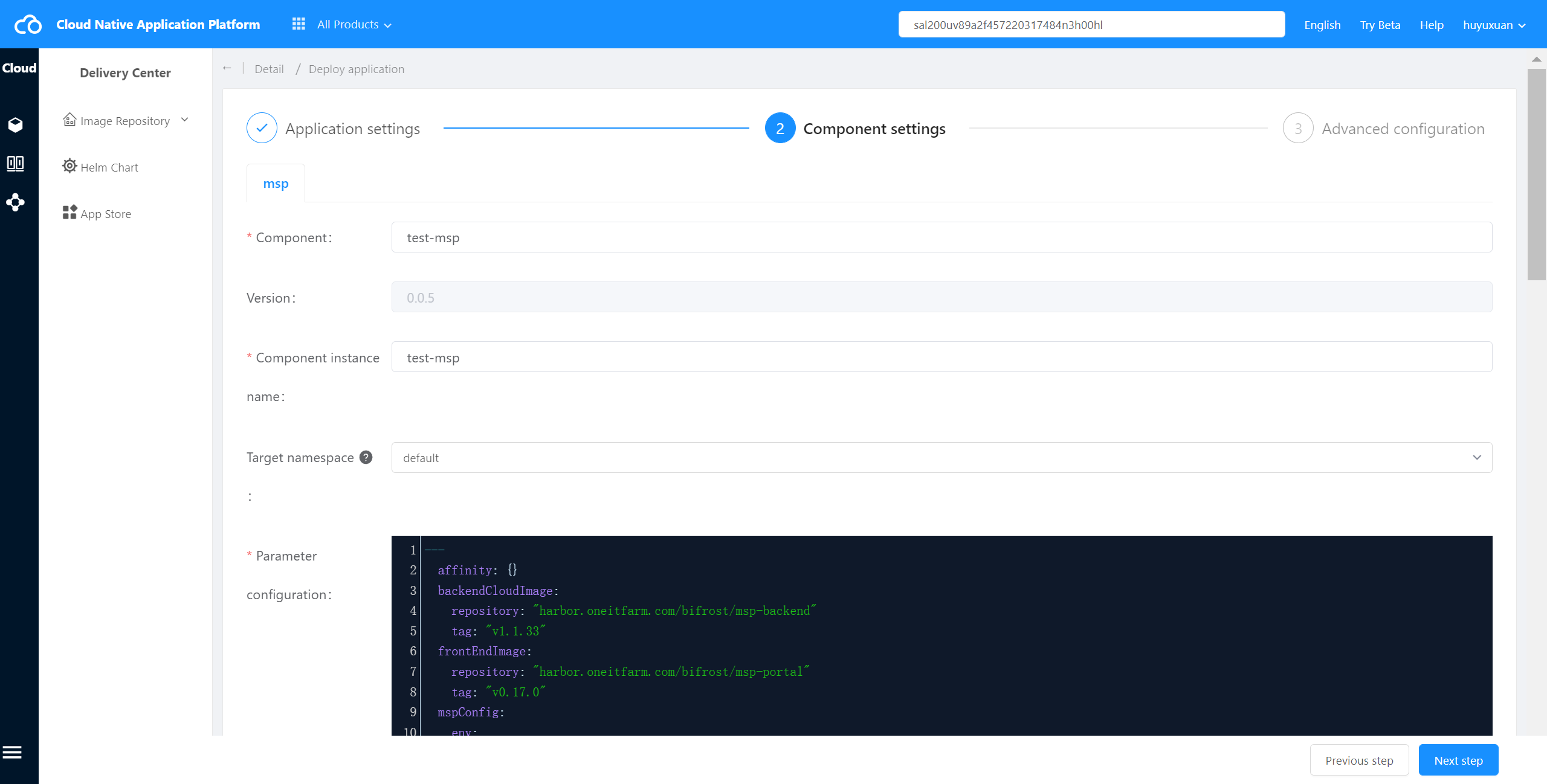
Select components to configure the following component information:
- Component name: required,default is application name+component name.
- Instance Name: required.Currently,it is only supported when the component type is helm.
- Target namespace: the default is the namespace selected by the application, and secondary selection is supported.
- Parameters: configure parameters such as environment, identity authentication, etc., such as accesskey, secretkey, endpoint and instanceid, and the parameters can be expanded by themselves according to user requirements.
After filling it out,click Next, as shown below:
Third step:
Select a component to configure its operation and maintenance features, for example,elastic expansion and Ingress, environment variables and other functions.
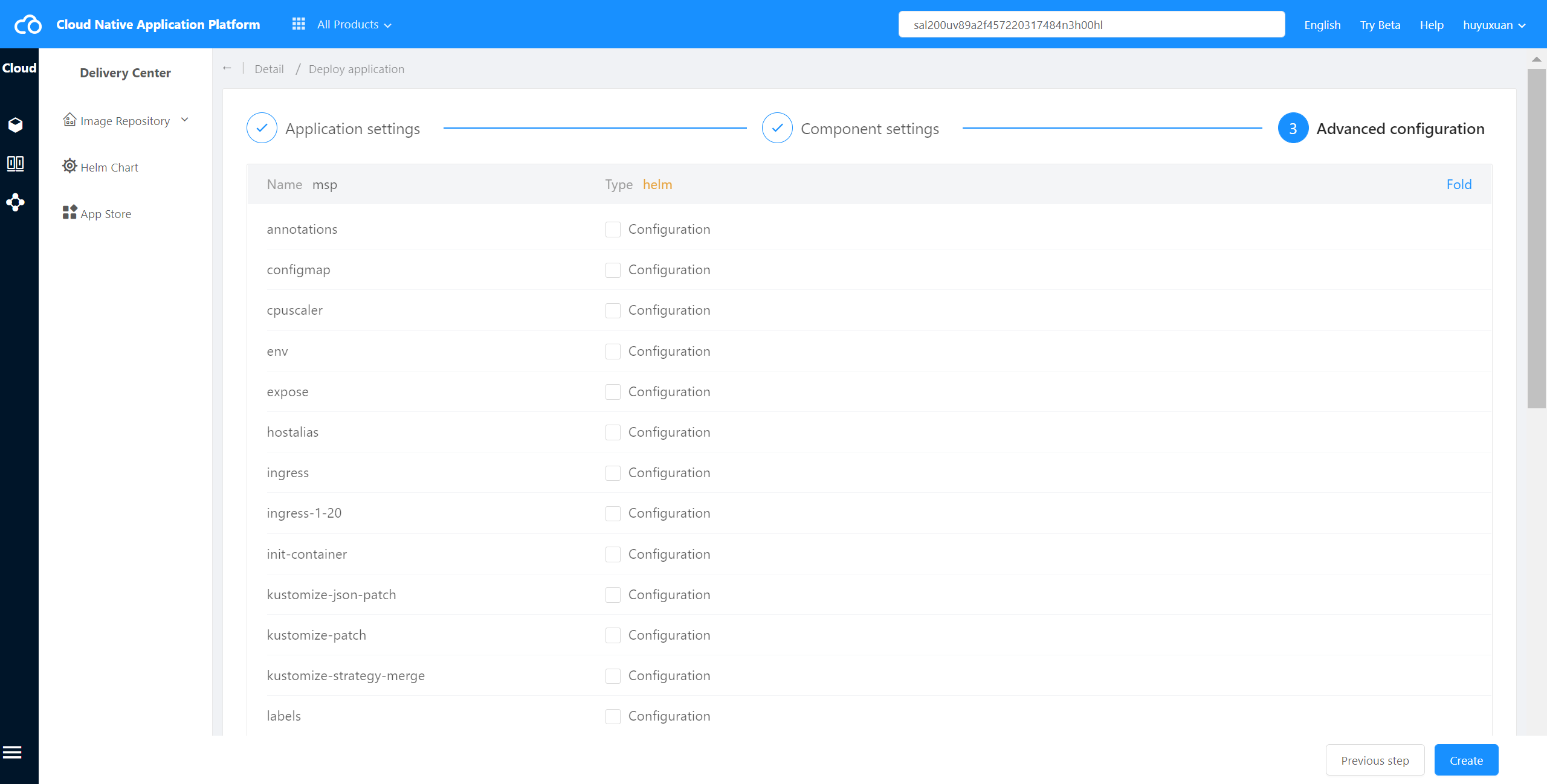
Click Create to start deploying the application.